Tutorial: Simple Notepad
This tutorial follows the Simple Notepad Tutorial example from Tecgraf’s IUP documentation.
This tutorial develops a GUI application with a wide range of typical features. A working program for each section N can be found as "examples/notepad-N.rb", downloadable from the latest tagged version.
1. Main Dialog
The central GUI element used here is Text: see the API documentation for
Iup::Text. This element can be used in a number of
different ways, including being used as a single line piece of text. Here, we
will use it as a multiline text area.
require "iup-ffi"

Iup.mainloop do
  multitext = Iup::Text.new do |t|
    t.multiline = "YES"
    t.expand = "YES"
  end
  vbox = Iup::VBox.new(multitext)
  dlg = Iup::Dialog.new(vbox) do |d|
    d.title = "Simple Notepad"
    d.size = "QUARTERxQUARTER"
  end
  dlg.show
  IupLib.IupSetAttribute(dlg.handle, "USERSIZE", nil)
end
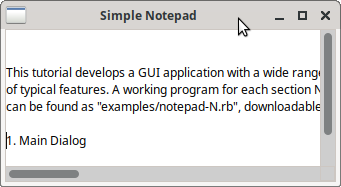
The multiline text element is created, setting the options to use multiline and expand. As we have set a size for the dialog, we need to set the "USERSIZE" attribute to nil after the dialog is shown to enable the scrollbars to work correctly.
2. Adding a Menu
Menus are created from four different elements:
-
Iup::Menu - a container for a list of items, separators or submenus.
-
Iup::MenuItem - single item of menu, generates an action when selected.
-
Iup::Separator - a horizontal line within a menu.
-
Iup::SubMenu - an item which, when selected, opens another menu.
(For reasons of space, code samples will now only be snippets - see the full example code linked above.)
The code to create the menu for the notepad is as follows. Notice that the exit item has been given a callback, and the file menu is loaded into a submenu before adding to the main menu.
  item_open = Iup::MenuItem.new("Open")
  item_saveas = Iup::MenuItem.new("Save As")
  item_exit = Iup::MenuItem.new("Exit", ->{ exit_cb })
  file_menu = Iup::Menu.new(
    item_open,
    item_saveas,
    Iup::Separator.new,
    item_exit
  )
  sub1_menu = Iup::SubMenu.new("File", file_menu)
  menu = Iup::Menu.new(sub1_menu)
Install the menu, by setting the menu attribute on the dialog:
  dlg = Iup::Dialog.new(vbox) do |d|
    d.title = "Simple Notepad"
    d.size = "QUARTERxQUARTER"
    d.menu = menu
  end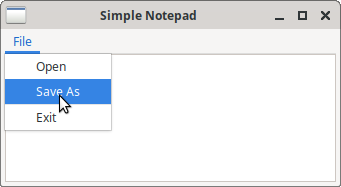
3. Using Pre-Defined Dialogs
IUP provides some powerful dialogs, including Iup::ColorDialog, Iup::FileDialog, and Iup::FontDialog. Here, we use the file dialog to make the open and save actions work, and use the font dialog to demonstrate a further feature of the Iup::Text element, that it can handle multiple fonts. Finally, we also add an about option, reusing the message dialog seen before.
For the file handling, we define an open and a save method, each of which
popup an instance of FileDialog. When finished, we check the status of
the dialog, and act accordingly. For the open method, we read in the text
from the selected file and set the text’s value.
def open_cb(text)
  filedlg = Iup::FileDialog.new do |d|
    d.dialogtype = "open"
    d.extfilter = "Ruby Code|*.rb|Text Files|*.txt|All Files|*.*|"
  end
  filedlg.popup

  if filedlg.status.zero? # do we load in the file?
    text.value = IO.read(filedlg.value)
  end

  Iup::DEFAULT
end
4. Custom Dialogs
TODO
5. Defining Hot Keys
TODO
6. Recent Files Menu and a Configuration File
TODO
7. Clipboard Support
TODO
8. More File Management
TODO
9. Dynamic Layout
TODO
10. External Help
TODO
11. Final Considerations
TODO
Not explored here, but you can replace the Text widget with a Scintilla widget, for a range of other features.